Revisited
by Wayne G. Longman
Keep your hands on the keyboard with MACRO.ARC on your START disk!
It's not often I'm so impressed with a magazine that I buy two copies of the same issue, but I bought two copies of the Winter 1987 START. Why?
STARTKey.
John H. Jenkins' STARTKey really impressed me. This desk accessory lets you define keyboard equivalents to replace the drop-down menus on any GEM program. In fact, you can define keyboard equivalents for any keystroke combination and manipulate GEM functions by sending messages to programs.
Using the Program
You must have STARTKey to use the macro files on this issue's START
disk. To use the macros, copy the file MACRO.ARC and ARCX.TTP onto a blank,
formatted disk and un-ARC MACRO.ARC. following the Disk Instructions elsewhere
in this issue. These macros define keyboard equivalents for the menu bars
in 1st Word version 1.03 (1STWORD.TXT and 1STWORD.MAX) and 1st Word Plus
version 2.02 (WORDPLUS.TXT and WORD-PLUS.MAX). Refer to the STARTKey documentation
in the Winter, 1987 START to see how to load the .MAX files and edit the
.TXT files.
By using the macros, you can access some of the characters in the ST's alternate character set. Here's a list of the special characters:
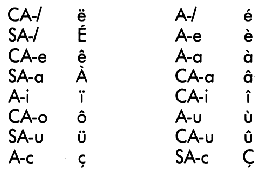
Note: C- means to hold down the Control key while pressing the character,
A- means to hold down the Alternate key while pressing the character and
S- means to hold down the Shift key. If the key sequence is, for example,
CA-e, you must hold down both the Control and Alternate keys while pressing
e.
Function Keys of Note
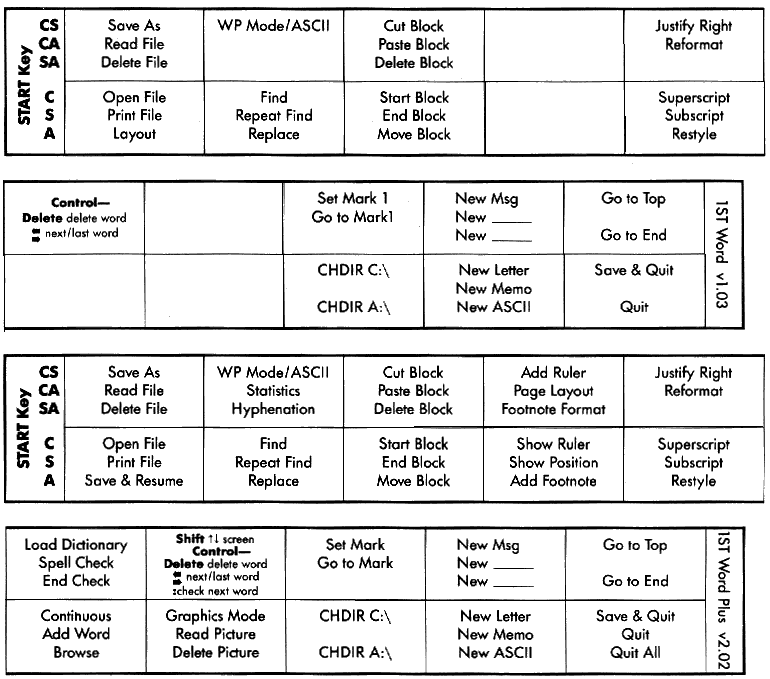
I've used the function keys exclusively for the menu items. Below is
a keyboard template for each of these files. Photocopy this page, cut out
the two halves of the appropriate template and tape it together Then, tape
it to your ST keyboard above the function keys.
Most of the function keys access the drop-down menus. Refer to the templates for a complete list of function keys and commands. Below are some other helpful Function key definitions:
- CS-F10 goes to the top of the document, SA-F10 goes to the bottom. These keys let you jump back and forth from the beginning to the end of the document very quickly.
- F8 has two macros to change directories; they only work when you have opened a file selector box. (These work with the standard GEM item selector, not the START selector)
- The F9 functions let you use preformatted documents. This option also works only when the file selector box is already opened. If you have 1st Word Plus, create document formats for letters, memos, ASCII files, etc. and save them in the FORMATS folder using the names FORMAT.LET, FORMAL.MEM, etc. 1st Word owners should create templates and name them NEW.MEM. NEW.LET, etc. and keep them in the same directory as 1st Word. Actually, it isn't possible in 1st Word Plus to create an ASCII Ruler, but it is possible to set the ruler to 80 columns in the WP mode, use it, and then save it in the ASCII mode- that's how the NEW ASCII option is intended to be used.
One note of caution: calling functions when they are normally grayed-out may cause your ST to crash. This is because STARTKey is going behind the word processor's back as it (STARTKey) selects options. For example. 1st Word Plus doesn't check whether the the dictionary has been loaded when you select Browse because normally the menu bar is greyed out until you load the dictionary. If you do select Browse (A-F6) without a dictionary in memory, the program will crash.
A major complaint about 1st Word Plus has been its lack of keyboard control. With this added feature, it may well become the best word processor around.
Wrapping Up
I hope you get as much use out of STARTKey Macros as I got from the
original STARTKey. Oh yes, why did I buy two issues of START? Well, the
first time, I bought the non-disk issue from a newsstand. I didn't even
try to take it back!
Missing out on STARTKey? You can order the disk and magazine for Winter, 1987 by calling 1-800-234-7001. If you are a CompuServe subscriber, you can download STARTKey from Antic Online's November Software Shelf; log onto CompuServe and type GO ANTIC.
Wayne G. Longman lives in Ontario, Canada and is a contributor to the Bytown Bytes newsletter.