
THE
WORLD INSIDE THE COMPUTER
Turning Logo Upside Down
Fred D'lgnazio, Associate Editor
Turning Logo Upside Down
Fred D'lgnazio, Associate Editor
 In my February 1983
COMPUTE! column I put out a call for new computer languages for kids. I
related my experiences with my own children (ages three and seven),
trying to teach them to program. Frankly, I admitted that my efforts
had failed. Neither child seemed to have the least in clination to
learn how to program.
In my February 1983
COMPUTE! column I put out a call for new computer languages for kids. I
related my experiences with my own children (ages three and seven),
trying to teach them to program. Frankly, I admitted that my efforts
had failed. Neither child seemed to have the least in clination to
learn how to program.You readers responded to the column in a big way. You told me about your own thoughts about kids and programming, and you passed on news about programming projects and languages that you had learned about. I want to thank you for all this information. I will be printing excerpts from your letters in the coming months. Also, I am anxious to hear from even more of you. I believe kids' computer languages are the cutting edge of the revolution in computer learning. They deserve all the attention and debate we can muster up.
Fred D'Ignazio is a computer enthusiast and author of several books on computers for young people. His books include Katie and the Computer (Creative Computing), Chip Mitchell: The Case of the Stolen Computer Brains (Dutton/Lodestar), The Star Wars Question and Answer Book About Computers (Random House), and How To Get Intimate With Your Computer (A 10-Step Plan To Conquer Computer Anxiety) (McGraw-Hill).
As the father of two young children, Fred has become concerned with introducing the computer to children as a wonderful tool rather than as a forbidding electronic device. His column appears monthly in COMPUTE!.
Enter Delta Drawing
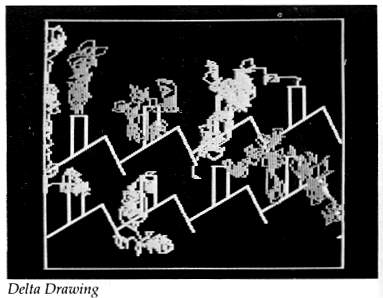
Shortly after I wrote my February column, I received a copy of Spinnaker Software Company's Delta Drawing program for the Apple II Plus. (Versions for other computers are expected soon.) At first, I thought Delta Drawing was just another new "paint" program or simplified "turtle graphics" program. Then I dug further.
Now, my family and I have spent a dozen hours playing with Delta Drawing, and I am convinced that it is something more. I now believe that it is a first, but significant, step toward a powerful new computer language for kids.
I Want To Play Mystery House!
This is how my seven-year-old daughter, Catie, and I were first introduced to Delta Drawing:
I took the plastic off the Delta Drawing case and handed the disk to Catie. Catie put the disk in the Apple computer's disk drive and booted up the program.
We answered a couple of quick questions (did we have a color monitor? <Yes - a must>; did we have a printer? <No>). Then a little upside down "V" appeared on the center of the screen. Under the V was a blinking dot. Around the edge of the screen was a blue box.
The manual calls the upside-down V the "Delta Drawing cursor." But Catie knew better. "That's a turtle," she said. "The blinking dot is her tail." Catie named the turtle DeeDee (for "DD" - Delta Drawing).
I thought things were going pretty well. That's when Catie got bored. (Catie gets bored easily.)
"I'm tired of this game," she said.
"But we haven't even started," I replied.
"I don't care. I want to play Mystery House."
Mystery House (from On-Line Systems) is one of Catie's favorite adventure games (along with Cranston Manor, also from On-Line, and Copts and Robbers, from Sirius).
Did I respond to Catie's obstinance with tact and gentle persuasion? Of course not. I did what any normal parent would do. I yelled at her.
Naturally, she responded by crying and I felt guilty. You really botched it, Fred, I thought to myself.
Catie started banging on the Apple keyboard. All of a sudden, DeeDee came to life and drew a small straight line toward the top of the screen. She made a cute little "blink" or "clink" sound. Catie stopped crying and stared.
"Can I make my own pictures?" she asked.
Encouraged, I pulled out the "Fast Start" cards that accompany the Delta Drawing manual. Catie and I both avoided the manual. At 80 pages of fairly tiny print, it looked too intimidating, both for daughter and daddy.
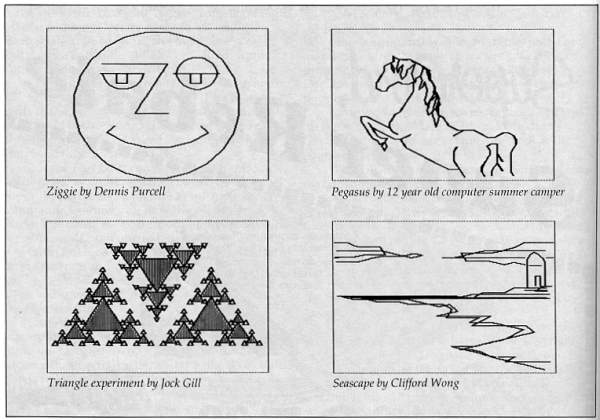
But the Fast Start cards were different. Each one is made of shiny, plastic-coated, heavy-stock paper. Each one has a picture at the top and a few commands to show you how the picture was made. The cards are two-sided, numbered (with big numbers!) from one to fourteen.
One card tells you on one side how to load Delta Drawing, and on the back gives you all of the Delta Drawing commands. I discovered that Catie had pressed the Apple's "D" key and caused DeeDee to draw.
Catie and I looked at the pictures on the Fast Start cards. We grew qxcited. It looked like we could get DeeDee to draw all the standard stuff: circles, squares, triangles, and the like. We could also get DeeDee to draw three-dimensional cubes and "paint" the sides; play a game of Tic-Tac-Toe, and draw a colorful scene with an orange house, green grass, a blue sky, and an orange sun.
But how?
I did the adult thing and turned to card #1 and began trying to decipher the command beneath the picture. Meanwhile, Catie did the kid thing and began punching buttons. A couple of minutes later, I was still on card #1, but Catie had discovered that the "R" button made DeeDee turn right 30 degrees and the "L" button made her turn left 30 degrees. Catie showed me how she could press the "U" button and make DeeDee do a fancy U turn; and the "M" button to get DeeDee to scoot across the screen with her pen up - that is, she moved without drawing.
Catie squealed. "DeeDee didn't obey me," she said. "She went up and I wanted her to go down." We looked at the card with the command summary. We discovered that by pressing the "E" button we could make DeeDee backtrack and erase her last step.
I threw the Fast Start cards on the table. From that point on, we began improvising. Occasionally, we picked up the cards and borrowed commands off them, when we needed to make DeeDee do something we wanted her to do.
It sounds really impressive when I say that "Catie and I improvised." Actually, I advised Catie what to do, and she ignored me. This seemed to be a very successful strategy to learn Delta Drawing.
After a while, I gave up and let Catie take the lead.
Catie's approach was to do things with commands she already knew. For example, the first thing she did was hit the D (Draw) key until DeeDee drew herself off the top of the screen and popped back onto the bottom of the screen.
Catie wondered why DeeDee could "tunnel" off the screen, like Ms. Pac Man. Why didn't DeeDee bump her nose on the blue wall at the edge of the screen?
We looked at the Fast Start card with the command summary and found that there is a "B" command that makes DeeDee "bounce" instead of tunnel. When we pressed the B key, the wall turned green. To get DeeDee back into tunnelling mode, we had to press a "W" (wraparound) key.
Watching Catie at work was like watching a baby learn to speak for the first time - only in fast motion. She was learning a new language, and the moment she learned a new word in the language, she used it to express herself.
In fact, the reason she learned new words was to be able to express herself. She was motivated to master the language's vocabulary so she could do what she set out to do. And when she learned each new word, she automatically incorporated it into all the other words she knew. She was associating each word and developing word sequences - her own personal "grammar" in the new language.
Catie's experimental approach was efficient, but it also led us occasionally into dead ends and surprises. For example, Catie got DeeDee to draw a house out of a square and a triangle. She filled the house with purple, by pressing "C" to choose the color, then by holding the CTRL button down and typing "F" (Fill). Then she tried to color the grass green. She pressed "C" and picked green. She typed CTRL-F, and green started washing like a wave across the screen. Then the green went out of control. It slipped through a tiny hole in the line that separated the grass and the sky, and it filled the sky, too. It ended up filling the entire picture, except for the purple house.
Catie howled!
A Sun Not A Circle
One thing that I immediately liked about Delta Drawing was the quick way Catie could make a picture. Also, I liked the precise, geometric way she constructed pictures. I have a problem with "paint" programs that use joysticks because my fine motor skills never passed the "klutz" stage. But, looking at Catie create pictures in Delta Drawing, I had hopes that even I might be able to make something pretty.
That is, if Catie would ever give me a turn.
Another thing that pleased me about Delta Drawing is that when children are using shapes like triangles, squares, and circles - they are not dealing with them in an abstract, adult sense. After all, shapes by themselves are boring. But shapes that resemble real-world objects like hats, planets, boxes, mountains, etc., are interesting. And shapes that can be combined into "building blocks" to make a new world are even more interesting. With Delta Drawing, Catie not only combined the shapes, she created new shapes to act as the proper building blocks for the world she was trying to create.
The Catie Robot Makes A Circle
With both Catie and Eric (three years old), I had tried the classic Logo experiment where you get the child to play "turtle" and figure out how to walk in a circle around the floor. I had often tried, but I had always failed.
The easy part was getting Catie and Eric to play turtle and figure out how to draw a circle. They took a baby step forward then made a small turn to the right. Then they repeated two steps over and over until they made a circle.
Fine. But then came the hard part - entering a program into the computer to make the turtle do what Catie and Eric had discovered so easily.
This is where I hit a brick wall. Catie and Eric had no interest in creating a "circle" procedure (program) in Logo. In fact, they never got past the first command - FORWARD or FD.
For Catie and Eric, it was too much effort for too little reward. And they didn't want to wait for the computer to learn the procedure. Why couldn't the computer obey them and make the circle immediately?
With Logo it couldn't, but with Delta Drawing it could. To make a circle, Catie typed D (Draw) and R (Right), then D and R, then D and R again. As she typed, DeeDee responded and drew the circle. It was easy to type D and R, and Catie got immediate results. After drawing the circle for the first time, she colored it orange with just a single command - CTRL-F. Then, on her own, she figured out how to make DeeDee move around the edge of the circle and make rays. She had turned her circle into a sun.
Our First Delta Drawing Program
Catie and I were doing great - until I accidentally bumped the "1" button on the keyboard and Catie's beautiful picture disappeared.
I thought she was going to kill me.
Quickly, I scanned the card with the command summary, looking for an "Unerase" button. "Why did that happen?" I grumbled. "Stupid program!"
I didn't find an unerase command on the card, but I did discover the "T" (text) command. I pushed the T button. DeeDee vanished. The screen filled with words.
There was Catie's program! It was still there.
I flipped through the big manual. A moment later I realized what I had done. By accident, when I pressed the "1" button, I had saved Catie's picture as a program - program #1. To get the picture back, I had to call the program. Doing that was unbelievably easy. I just had to push the "1" button again.
We switched back to DeeDee by pressing the "G" (Graphics) button. Then Catie pushed the "1" button, and, superfast, DeeDee drew and painted her picture. It was good as new.
Automatic Pictures
That's when Catie and I discovered the "A" button. The A button executes the Automatic command. The Automatic command automatically calls the last saved program and obeys it - over and over until you punch the ESC (escape) button.
I had a brainstorm. I had Catie type in a CTRLD (a half-draw) and a CTRL-R (a half-turn right). DeeDee did her stuff.
Then I told Catie to press the "1" button. She did. Now we had a program that, when we pressed "T", looked like this:
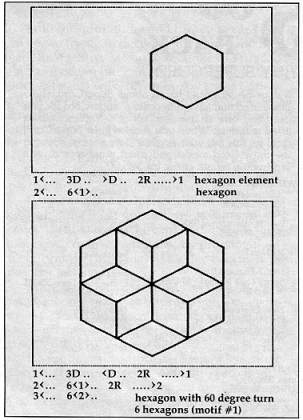
1< ... ^D.. ^R ... >1
The program looked puny and not very exciting. What was it good for? To find out, I asked Catie how we could make DeeDee automatically obey program #1- over and over. With just a moment's thought, Catie pressed the "A" button.
A couple of seconds later, we had a circle!
To get DeeDee to stop drawing, Catie pressed the ESC button. Catie and I were excited: using program #1 as a building block, we had created a "circle" program - program #2. We saved program #2 by pressing the "2" button.
We drew circles all over the picture screen and got DeeDee to paint them different colors. Then we tried something simpler - and neater.
We erased all our current commands by typing CTRL-E. We pressed the "T" button. Our first two programs were still intact.
We pressed 2 and got a quick circle. Then we pressed the "L" button. DeeDee turned 30 degrees to the left. We saved these two commands as program #3. The first three programs looked like this:
Program
#1 1< „, ^D.. ^R ... >1
Program #2 2< ... 25<1> ... >2
This came from pressing the A button.
Program #3 3 < ... <2> .. L ... > 3
Program #2 2< ... 25<1> ... >2
This came from pressing the A button.
Program #3 3 < ... <2> .. L ... > 3
When you see a number inside brackets, like <2>, it means you are calling a program - this time program #2. The 25<1> means you are calling program #1 25 times. We got the computer to do this just by pressing the A button - once! - and the ESC button to stop DeeDee.
Next Catie typed the A button. DeeDee drew a circle, turned left 30 degrees, drew another circle, turned left 30 degrees, drew another circle, and so on. In about a minute she had rotated her way around the picture screen. She had drawn a three-dimensional figure: a doughnut! Catie, on her own, moved DeeDee and had her paint the doughnut's center orange and the background violet. After the doughnut was drawn (not before), Catie and I pressed "T" to see what the program looked like. Here it is:
Program
#4 4 < ... 44<3) .. 2L.. M.. C:2
..
^F.. 8M.. C:5.. ^F..
Remember: the most formidable command - 44 "calls" of program #3 was achieved by pressing the A button once.
Catie and I saved our doughnut in just a few seconds. We pressed CTRL-S, and the computer asked if we wanted to save or recall (load) something. We pressed "S" for save. Then the computer asked us if we wanted to save the program ("T" - text) or the picture ("G" - graphics). We typed "T." The computer told us to load in our own disk. We did, and it asked us to name our Delta Drawing file - we called it DONUT. Then the computer saved it.
Nested Building Blocks
Delta Drawing's real power comes from its ability to save pictures as building blocks; from its ability to combine simple building blocks into blocks that are more and more elaborate and complex. And you can gain access to all these building blocks just by pressing the CTRL-A buttons. When you press CTRL-A, the computer asks you which building block (program) you want. You can choose any number, from 1 to 9.
By pushing just a few buttons, Catie and I created our doughnut. We built the doughnut from a draw and turn program, a circle program, and a circle and turn program. Just as easily, we could have created "house" programs, "people" programs, "tree" programs, and so on. We could have formed a picture by positioning DeeDee on the screen and calling the program we wanted.
A Kid's Language
Delta Drawing represents, I hope, one of the early representatives of a new generation of children's software that combines simplicity with great power. Also, it is open-ended. It is a language. Once the child learns the language, she can do whatever she wants. And she can do a lot even as she is learning the language.
This simplicity, power, and freedom are what made the program a hit with Catie. And when her brother showed up, and learned a few buttons, they made a big hit with him, too. All of a sudden programming becomes an activity with immediate results that are meaningful to the child, controlled by the child, and that challenge and stimulate the child to be original and inventive.
This is certainly a good start toward a kids' language of the future. And it's not a bad adult's language, either. My wife Janet and I have had a ball creating pictures with Delta Drawing. Here is a piece of software that is equally fascinating and easy to use for a three-year-old, a first grader, and two jaded adults. The generation gap between the different members of the family disappears when we use Delta Drawing. We are all equally caught up in exploring its possibilities. And no single member of the family seems to have an edge. This is a very nice feature of the program.
Upside Down Logo
Why did I claim that Delta Drawing is like Logo turned on its head? Because with Logo (and most other languages), you have to type in the commands in your program before you can run the program and create a picture. With Delta Drawing you make the picture first, and in making the picture you create a program. It's just the opposite. It's Logo upside down!
Delta Drawing costs $59.95 and runs on the Apple II +. By spring, a new version will be available on the IBM PC. By next fall you can look for it on the Atari 800, the VIC, the Commodore 64, and possibly on other low-priced computers.
To inquire about Delta Drawing, write:
Spinnaker Software Corporation
215 First Street
Cambridge, MA 02142
617-868-4700
New Resources
Since my last column I've received two interesting new books.
The Computer Camp Book
The Computer Camp Book is published by The Yellow Springs Computer Camp, Inc. It has 224 pages and costs $12.95. To order the book, write:
The Computer Camp Book
1424 Glen View Drive
Yellow Springs, OH 45387
or call 513-767-7717.
The book is a wealth of information about computer camps, including:
- How to start and run your own computer camp
- Ideas and materials for teaching and learning
- Computer literacy activities
- A look at different computer camps
- A nationwide guide to computer camps, courses, and workshops
- A guide to computing resources (including a five-page guide to computing resources for handicapped people)
The Parent's Guide was written by David Moursund. It is a real buy-80 pages for only $3.50. To get the Guide, write:
Parent's Guide
Dept. of Computer & Information Science
University of Oregon
Eugene, OR 97403
or call 583-686-4429.
The book covers a lot of ground in a clear, simple style. Some of the subjects covered include: the school of the future, introduction to computers, hardware and software, computers in education, "What You Can Do," a buyer's plan, a glossary, and a list of resources.
A unique feature of the book is that it is really two books in one. A second book, entitled "Here Comes the Dawn (If Only I Can Find the Switch)," written by Merle Marsh, appears in little italicized text boxes at the foot of every few pages. It begins, on page 3: "I tried to enter the Computer Age by quietly sneaking up on the new technology ...."