Commodore
64 Video-
A Guided Tour
A Guided Tour
Jim Butterfield,
Associate Editor
This is the fifth installment of a seven-part series exploring the phenomenal 64 video chip and how to harness its power for your own programs. For practice, here's a step-by-step illustration of how to build a moon lander game.
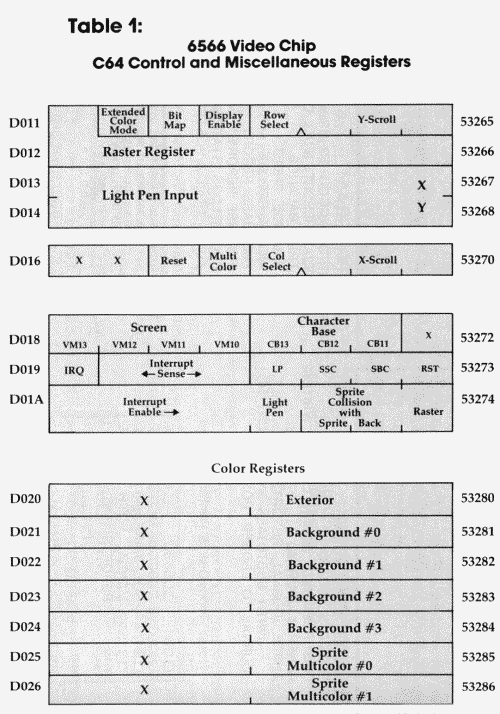
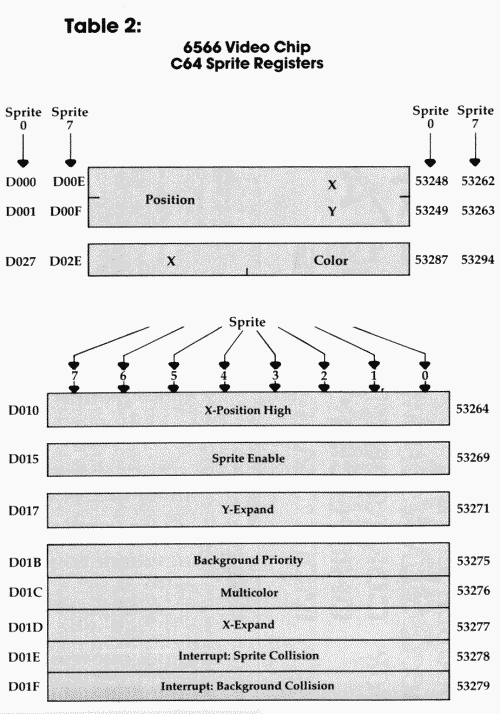
The story so far: we're touring the 6566 chip, which gives the Commodore 64 its video. We have noted that the chip goes to memory for its video information, but can only reach 16K; the computer controls which 16K bank via control lines in 56576 (hex DD00). We looked through the video control words at 53248 to 53286 (hex D000 to D026), and then discussed video memory planning.
First, The Craft
Here's a short program to demonstrate some of the features of the 64's video chip. We'll write a small lunar lander program.
First, let's draw the sprites for the rocket:
100 DATA 0,24,0,0,60,0,0,198,0,1,131,0,1,131,0,3,1,
128,3,1,128,3,1,128
110 DATA 3,1,128,3,1,128,3,1,128,3,1,128,1,131,0,1,
131,0,1,131,0
120 DATA 0,102,0,0,126,0,0,0,0,0,0,0,0,0,0,0,0,0
A fairly crude craft - you can improve it if you like. We have drawn the sprite into 63 bytes of memory; one more and we can continue to the next sprite.
130 DATA 0 :REM gap between sprites
Then The Flame
Now we're going to draw the rocket flame as a separate sprite. Why? Because later, when we look for collisions, we don't care what the flame hits, just what the rocket hits. There's another reason: when we're not thrusting, we can simply turn this sprite off, and the flame disappears.
140 DATA 0,0,0,0,0,0,0,0,0,0,0,0,0,0,0,0,0,0,0,0,0,0,
0,0,0,0,0,0,0,0,0,0,0
150 DATA 0,0,0,0,0,0,0,0,0,0,0,0,0,0,0,0,0,0,0,66,0,0,
36,0,0,24,0,0,24,0
Mostly zeros. The flame is only at the bottom of the sprite. OK, we're ready to go. Let's clear the screen and print instructions:
160 PRINT CHR$(147)
170 PRINT "LUNAR LANDER JIM BUTTERFIELD"
180 PRINT
190 PRINT "PRESS 'SPACE' FOR MAIN THRUST"
200 PRINT "PRESS 'Fl' FOR LEFT THRUST"
210 PRINT "PRESS 'F7' FOR RIGHT THRUST"
220 PRINT
230 PRINT "WATCH OUT FOR THE MINES."
240 PRINT
250 PRINT "LAND GENTLY OR YOU'LL BOUNCE!"
While the user is reading the instructions, we can read in the sprites and put them into slots 13 and 14. We can also set our sprite "position" addresses as variables, and identify sprites 0 and 1 as using pictures 13 and 14.
260 REM SET UP
270 FOR J=0 TO 126:READ X:POKE 832+J,X:NEXT J
280 X0=53248:Y0=53249:C0=53279
290 X1=53250:Y1=53251:E=53269
300 POKE 2040,13:POKE 2041,14
We'll make the rocket exhaust go "behind" the main screen. This way, as we land, the exhaust will go behind the background. We'll also give it color to distinguish it from the rocket ship itself (you can pick your own).
310 POKE 53275,2
320 POKE 53288,3: REM THRUST COLOR
330 PRINT "READY TO START";
340 X$="Y":INPUT X$
Variable E is used to enable the sprites. When we're ready, we'll turn them on; for now they can stay off.
350 POKE E,0
360 IF X$<>"Y" AND X$<>"YES" THEN END
We're ready to fly. Let's put the sprite high on the left part of the screen. Then we'll draw a screen with "mines" for the player to avoid.
370 V=100:H=100:V0=0:H0=0
380 POKE 54296,15:POKE 54278,240
390 REM DRAW SCREEN
400 PRINTCHR$(147)
410 FOR J=1 TO 18:PRINT:NEXT J
420 FOR J=1 TO 4:FOR K=1 TO 30
430 C$=" ":IF RND(1)<.1 and (K<20 OR K>25) THEN
C$="#"
440 PRINT C$;:NEXT K:PRINT:NEXT J
450 FOR I=1 TO 30:PRINT"="::NEXT I
Keyboard Checks
Let's place the sprite, and start the main play by checking the keyboard. We check for two different things: a new key (K$), or an old key still being held down (K):
460 POKE X0,H:POKE Y0,V:POKE X1,H:POKE Y1,V
470 K=PEEK(203):GET K$
480 REM MAIN FLIGHT LOOP-TEST KEYS
490 IF K$="" GOTO 550
500 K0=ASC(K$):V1=.1:H1=0
Let's check for the space bar. If it's on, we want to energize the rocket, and the rocket flame. Our vertical thrust will be upwards (-.5), and we'll note that we want to enable the flame video with a note that E0=3. We'll spot lateral thrust as keys F1 and F7, and set value H1 accordingly.
510 E0=1:IF K0=32 THEN V1=-.5:E0=3
520 IF K0=133 THEN H1=-.2
530 IF K0=136 THEN H1=.2
540 GOTO 560
550 IF K=64 THEN V1=.1:H1=0:E0=1
Here's where we turn on our sprites - either rocket only (E0 =1) or both rocket and flame (E0=3). As long as we're turning rockets on and off, we might as well add sound effects, too:
560 IF PEEK(E)=E0 GOTO 600
570 REM THRUST SOUND
580 POKE E,E0:IF E0=1 THEN POKE 54276,0:
GOTO 600
590 POKE 54273,8:POKE 54276,129
600 IF H1= H9 GOTO 630
610 H9=H1:K=SGN(ABS(H9))*129:POKE 54273,99:
POKE 54276,K
Gravity, thrust, or lateral thrust - they all involve acceleration. We add acceleration to our speed to get new speed; then we add speed to position to get new position.
620 REM LET'S MOVE IT!
630 V0=V0+V1:H0=H0+H1
To prevent the player going off screen, we'll invent a "field force" around the screen boundary. If you hit it, you'll bounce; that is, your speed will flip to the opposite direction. We'll fudge a bit. The "high bit" of the X position is tricky to set in BASIC; there's often a flicker during the moment that we set the low and high values. So let's limit the player's travel to the left-hand three quarters of the screen and avoid the problem.
640 REM FIELD FORCE BOUNDARIES
650 IF V<50 THEN V0=ABS(V0)
660 IF H<20 THEN H0=ABS(H0)
670 IF H>240 THEN H0=-ABS(H0)
680 V=V+V0:H=H+H0
We move the craft simply by changing its coordinates. Then we check the collision register to see if we've hit anything.
There's a problem here. It seems that collision is noted when the screen is drawn, not when you set the coordinates. BASIC isn't super fast, but it could be fast enough to miss that collision. If you watch the program closely, you will see that the rocket sometimes "bounces" after it goes below ground level.
There's an additional contributing factor. BASIC, being slow, may need to move the rocket several pixels in distance at a time. So, rather than just touching the ground and stopping, the rocket may leap from just above the ground to well into it, if it's going quite fast.
690 REM MOVE CRAFT, CHECK COLLISION
700 POKE X0,H:POKE Y0,V:POKE X1,H:POKE Y1,V
710 C=PEEK(C0):IF(C AND 1)=0 GOTO 470
Collision says we've hit something. We can look at our height (Y position) to see if it's the ground. If not, it must be a mine.
720 IF V>218 GOTO 780
730 IF V+V0<218 GOTO 470
We could do a sensational explosion here, but we'd need to define more sprites, or modify the ones we've got. Try your hand at it if you like. For the moment, hitting a mine will cause the rocket to disappear.
740 REM WE SEEM TO HAVE HIT A MINE
750 PRINT CHR$(19);"CRASHED!":POKE E,0
760 GOTO 820
Bounce And Overshoot
I arbitrarily decided to make the craft bounce if it hits too fast. If you'd rather crash, go ahead. See the previous note.
770 REM HIT THE DECK ... TOO FAST?
780 IF V0>1 OR V0<0 THEN V0=-ABS(V0):GOTO 470
790 PRINT CHR$(19);"LANDED!":POKE E,1
Because we may "overshoot" the ground and dig a little hole, we'll reset the vertical position of a successfully landed rocket to look neat. Then we wind up the game, or play another one.
800 POKE Y0,219
810 REM ALL DONE - SHUT DOWN
820 POKE 54276,0:POKE 54296,0
830 PRINT "WANT TO TRY AGAIN";
840 GOTO 340
There are many features you can add - such as a fuel supply.
We could have done a pretty background in high resolution graphics, but this would make it difficult to add features (if you wish) like meter readouts. In fact, I've used very dull graphics, but you may consider that a challenge.
That's it. We've done a simple sprite exercise. It's really not hard, even in BASIC. In machine language, it's almost too easy; you'll find that you need to slow your program down, or everything will happen too fast.
The graphics capability is there, and it's not hard to use. A little experimentation and practice, and you too can animate a picture that's worth a thousand words.
Copyright © 1982 Jim Butterfield